You
have no items in your shopping cart.
Understanding Memory Card Error Messages: How to Avoid Corrupted Data and Loss
November 24, 2026
1 min read

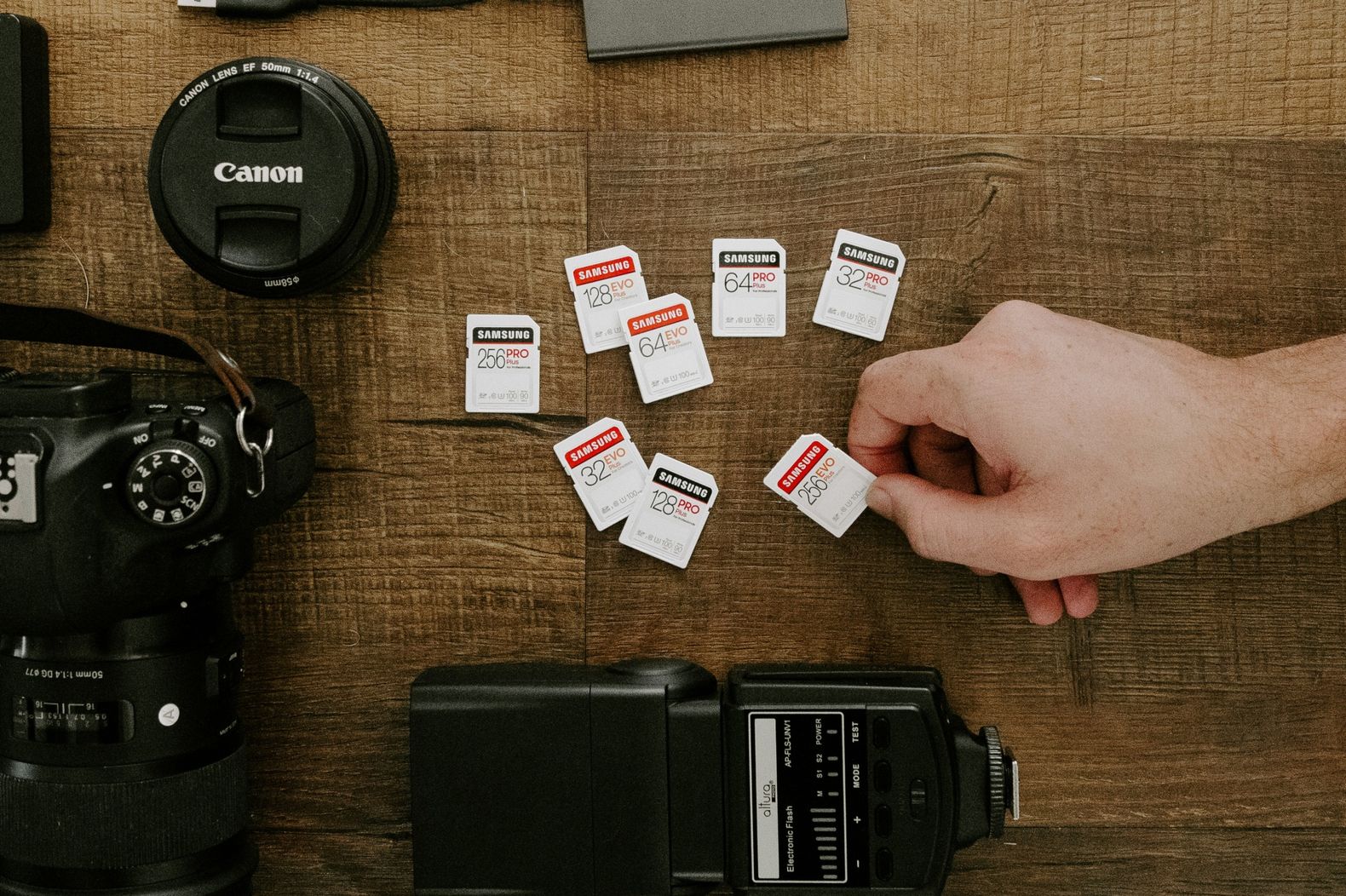
Memory card errors can signal anything from a locked switch to damaged storage, but they don’t automatically mean your photographs are gone. The most important thing you can do is stop shooting, protect existing files, and investigate before formatting the card.
Whether your camera displays a card error, refuses to recognize an SD card, or won’t save new images, the right response depends on what’s causing the problem. This guide explains common memory card errors, how to approach photo recovery safely, and the habits that help protect your files before and after every shoot.
A memory card error means your camera can’t complete an operation, such as reading photographs, writing a new image, or accessing the card. The cause could be compatibility, write protection, insufficient storage, file system corruption, or physical damage. Not every error means the card has failed.
Memory card corruption occurs when stored information or the file system structures used to locate it become damaged. Photographs may become inaccessible even when some of the underlying image data is still recoverable.
It’s important to distinguish between two broad types of problems:
The distinction matters because the safest recovery approach isn’t the same for both. A stable card with missing files may be a candidate for recovery software. A card that repeatedly disconnects or shows signs of physical failure should not be subjected to repeated scans.
Here’s a breakdown of common camera memory card errors and the safest first response.
| Error message | Likely causes | What to do first |
| Card Error | Access failure, incompatible card, or card damage | Stop shooting. Check compatibility and avoid further use if files need recovery. |
| Cannot Be Read | Damaged file system, access problem, or unsupported card | Try a compatible reader only if the card appears stable. Copy accessible files before attempting repairs. |
| Card Full | Available storage exhausted or file/folder limits reached | Switch to a spare card. Back up existing photographs before deleting or formatting. |
| Write Protected/Locked | SD card or adapter lock switch engaged | Power down, remove the card, and check the lock switch. |
| Format Error | Unrecognized or incompatible file system, or card damage | Decline formatting if the card contains photographs you need. Assess recovery options first. |
| Write Error | Recording failure, card fault, or unsuitable recording media | Stop recording and check the camera's card requirements before using the card again. |
Error wording varies between camera manufacturers and models, so consult your camera manual when interpreting a specific warning. No single message proves that a card has failed. Start by protecting your photographs, then investigate the most likely causes.
If you need to recover photos from an SD card, stop using it immediately. Don’t take additional photographs, delete files, or format the card. Any new data written to the card can overwrite information you may still be able to recover.
The next step depends on what the card is doing. Use this decision path before attempting recovery.
Wait for the camera’s access light to finish blinking, then power down before removing the card. Removing a card or battery while the camera is writing can interrupt the recording process and damage files.
When you connect the card to a computer, you may see a prompt asking you to format it before it can be used. Cancel that prompt if the card contains photographs you need. Formatting isn’t a photo recovery method and can make recovery more difficult.
If the card is stable and readable, creating a disk image can provide a safer working copy for recovery attempts. A disk image is a sector-by-sector copy of the card that preserves its current contents. Recovery software can then work against the image instead of repeatedly accessing the original card.
This isn’t a guarantee of recovery, and it isn’t appropriate for a card showing signs of physical failure. If the card is disconnecting or failing to respond, even creating an image may place additional demands on it. For important photographs, professional recovery is the safer next step.
If the card is physically intact and can be accessed reliably by a compatible reader, follow these steps:
Keep the original card untouched until you’ve confirmed that the recovered photographs are usable. A recovery tool finding hundreds of files doesn’t necessarily mean every photograph is intact.
If the images are important, maintain another copy of the recovered files before attempting any repairs or reusing the card.
Learn how to format a memory card.
Once your photographs are backed up or recovery is no longer necessary, you can focus on getting the card working again. Change one variable at a time so you can determine whether the problem is coming from the card, camera, reader, or compatibility.
If your camera displays an SD card not recognized warning, start by checking whether the card is compatible with your camera. Physical fit doesn’t guarantee compatibility. Cameras have specific requirements for card type, capacity, and supported formats.
Consult your camera manual to confirm which memory cards are supported, particularly if you’re using a higher-capacity SDXC card or recording high-resolution video.
Next, try a known-good, compatible spare card in your camera.
An SD card write error can also indicate that the card isn’t fast enough for the selected recording mode. High-resolution video, high-bitrate recording, and continuous shooting place different demands on memory cards.
Two specifications matter when choosing a replacement memory card, but they solve different problems.
A card with plenty of storage may still be too slow for a camera’s demanding video settings. Likewise, a fast card doesn’t necessarily offer enough capacity for a long shoot.
Check your camera manufacturer’s recommended card type, capacity limits, and minimum sustained write-speed requirements for the recording mode you plan to use. Speed labels and ratings can vary, so don’t rely on a universal recommendation.
When building a camera kit around KEH Certified™ pre-owned equipment, check the specific model’s memory card requirements before choosing accessories. KEH offers a selection of memory cards, card readers, and other photography accessories to help you put together a compatible setup.
Formatting and file system repair tools can change information stored on a card. That’s why they should come after you’ve protected any photographs you need.
Some computer repair utilities modify file-allocation information and directory structures. Depending on the damage, these changes can make missing photographs harder to recover.
Once your files are safely backed up, formatting the card in the camera you plan to use is generally the best way to prepare it for that camera. This allows the camera to create the file system and folder structure it expects.
Quick formatting generally resets file system information without overwriting every data sector. Full or overwrite formatting may overwrite the stored data itself. Neither is a photo recovery method.
If the same errors return after formatting, don’t assume the card is dependable again. Retire it from important work and replace it rather than risking another shoot.
Preventing memory card problems starts with compatible equipment, careful handling, and consistent backups. A few simple habits can reduce the risk of corrupted files and lost photographs.
Before the shoot
After the shoot
For professional photographers, backing up files in more than one location is especially important. A memory card is temporary storage, not a long-term archive. Building a reliable backup routine protects your photographs even if a card eventually fails.
No. A full-card warning usually means there’s no available space for additional photographs. Switch to a spare card and back up the existing files before deleting anything. A full card isn’t necessarily damaged.
Camera playback has compatibility limitations. Images created with another camera or edited on a computer may not be supported by your camera’s playback system. A playback failure alone doesn’t prove that the file is corrupted.
Yes. Many microSD-to-SD adapters have a physical write-protect switch. Check that the switch is in the unlocked position and that the adapter isn’t damaged. If the warning persists, try another compatible adapter or card to determine whether the problem is with the adapter, card, or camera.
Only after confirming that the recovered photographs are safely stored elsewhere. Once you’ve verified your backups, formatting the card in the camera you intend to use is generally the best way to prepare it for future shooting. If the card continues to produce errors, replace it rather than relying on it for another shoot.